Motion · Interação
Segmented thumb hero
A segmented control's thumb shift becomes the star of a close-up — a cursor clicks it and a new icon springs in.
Fonte: video-shotcraft (Vincent Wei) ↗ · Apache-2.0 · Composição Remotion (React/TSX) — vídeo de prévia, sem player no navegador
When to use
An announcement shot for a "mode switch / pick one of two" feature (Ask→Computer, Chat→Agent style); a close-up technique that lets one micro-interaction carry a whole shot
Intention
When a product switches to a new mode, the usual shot swaps out the whole interface. This card does the opposite: it blows the segmented control up to 1080px wide for a close-up, and the thumb's 8-frame shift itself is the narrative — "we went from A to B." With no page context at all, the control itself is the stage. The causal chain is complete: the cursor slides in (someone arrived) → clicks with a ripple (a decision was made) → the thumb slides (the world responds) → the new icon pops (a new identity is confirmed). None of the four beats can be dropped: skip the cursor and it looks like the control is moving on its own, skip the icon pop and the switch has no payoff.
Duration & energy
- Duration: ~3.5s (demo 110f: float-in 18f + cursor 24f + click + slide 8f + icon pop + hold)
- Energy: Medium (a refined micro-interaction close-up, not a big hit)
Shot recipe (original Chinese — timing, easing, parameter table, known pitfalls)
意图
产品切到新模式,通常拍法是整个界面换掉。本卡反着来:把 segmented control 放大到 1080px 宽拍特写,thumb 那 8 帧位移本身就是叙事—— "我们从 A 走到了 B"。没有任何页面上下文,控件即舞台。因果链完整: 光标滑入(有人来了)→ 按下+涟漪(做了决定)→ thumb 滑动(世界响应) → 新图标弹出(新身份确立)。四拍缺一不可,缺了光标就是 UI 自己在动, 缺了图标弹出就是切换没有奖励。
动效核心
- 控件特写尺寸 1080×220,从下 200px 弹簧浮入
(spring damping 14 / stiffness 120),大阴影随落位收小(24→12px)
- 光标是超大描边箭头(130px,白底墨描边):24f Easing.out(cubic)
从右下画外滑到目标段上;按下 scale 1→0.86→1(3f 下 4f 回)
- thumb 严格 8f Easing.out(cubic)(demo 52→60f)——还原原片手感;
这 8f 是全镜的心跳,前后各拍都在为它服务
- 到位瞬间双动作同帧起:新图标 spring(damping 10, stiffness 220)
过冲弹出;旧图标 6f Easing.in 塌缩且 width 同步归零让文字自然回流
- 点击涟漪:4px 描边圆环 12f 从点击点扩散淡出(Easing.out(quad))
——涟漪确认"按下"发生过,无涟漪点击读作光标路过
参数表
| 参数 | 典型值 | 调节手感 | |------|--------|----------| | 控件尺寸 | 1080×220,thumb 内缩 16px | 缩到 <600px 宽就不是特写了,thumb 位移读不出重量 | | thumb 时长 | 8f Easing.out(cubic) | >14f 读作慢动作演示视频;<5f 读作瞬移,"滑"没了 | | 光标滑入 | 24f 从画外,ease-out | linear 或 <14f 读作光标被扔进来;起点必须画外 | | 按下 | scale 0.86 + 涟漪 12f | 无按下直接滑 thumb,因果链断,读作自动播放 | | 图标弹出 | spring damping 10/stiffness 220 | damping <8 弹三下抢 thumb 的戏;旧图标不收起文字会挤出控件 | | 收尾 hold | 新态静置 ≥30f | 切换完立刻切镜,"新模式"没被看清 |
已知坑
- demo 在灰阶/占位素材上调校通过——参数是调校起点非实战定稿,
首次实战须以真实素材回验
- 与 input-trigger-moves 分工:cursor-performance 是光标在完整页面里
点击推近(有上下文),本卡是控件脱离页面拍无背景特写——同片可共存, 但同一次点击别既拍页面版又拍特写版
- 图标塌缩用 width 归零而不是只 scale——只 scale 会留空位,文字不回流,
控件内出现"幽灵缝"(demo 里 width 与 scale 同步驱动)
- 二段以上(3+ 段)控件慎用:thumb 跨多段滑行 8f 太快读不出停靠,
拉长又破手感——本卡吃"二选一"最顺
- 涟漪圆环要 zIndex 压在 thumb 之上、圆心锁点击点——跟着 thumb 走
就成了 thumb 的拖尾,语义变错
- 实战替换素材:段标签/图标换成真功能名即可,但"新段图标带表情"
(demo 笑脸 laptop)是奖励感的一半,纯线框图标会淡不少
参考实现
demos/interaction/segmented-thumb-hero/ (SegmentedThumbHero.tsx) 原片出处:perplexity-promo 2.3–5s
Reference implementation (Remotion)
- demos/interaction/segmented-thumb-hero/SegmentedThumbHero.tsx — https://raw.githubusercontent.com/Vincentwei1021/video-shotcraft/main/demos/interaction/segmented-thumb-hero/SegmentedThumbHero.tsx
The component imports shared fixtures from demos/_fixtures and helpers from assets/lib in the repo; SKILL.md there documents the render workflow.
Tudo nesta página também é legível por máquina. Aponte seu agente para o JSON ou adicione o servidor MCP do gimgs e peça para buscar templates de motion.
- Baixe o JSON — contém a receita do plano (timing, easing, tabela de parâmetros, armadilhas) e o código TSX completo.
- Clone o repositório video-shotcraft; o componente importa fixtures de demos/_fixtures e helpers de assets/lib.
- Registre o componente como <Composition> em um projeto Remotion e renderize com `npx remotion render`, ou reimplemente a receita no seu próprio engine.
curl -s https://gimgs.net/motion/segmented-thumb-hero.jsongit clone https://github.com/Vincentwei1021/video-shotcraft
# component: demos/interaction/segmented-thumb-hero/SegmentedThumbHero.tsx
npx remotion render <CompositionId> out.mp4claude mcp add --transport http gimgs https://gimgs.net/mcp
# then: search_motion_templates / get_motion_template("segmented-thumb-hero")Prompt
Use the video-shotcraft shot recipe "Segmented thumb hero" (Remotion composition, Apache-2.0) published on gimgs.net.
Recipe JSON (prompt = timing/easing/parameter table/pitfalls, files = TSX source): https://gimgs.net/motion/segmented-thumb-hero.json
Raw TSX: https://gimgs.net/motion/segmented-thumb-hero/template.html
Repository: https://github.com/Vincentwei1021/video-shotcraft  (component: demos/interaction/segmented-thumb-hero/SegmentedThumbHero.tsx; imports demos/_fixtures and assets/lib)
Spec: 1920x1080, 30 fps, 3.71s

1. Read the JSON and follow its "prompt" section (when to use, intention, parameter table, known pitfalls).
2. Adapt it for: <describe what you want>.
3. Either clone the repo, register the component as a <Composition> in a Remotion project and run npx remotion render <CompositionId> out.mp4 — or re-implement the recipe in your own engine (HTML/WAAPI works: keep the same timing and easing).
// ===== demos/interaction/segmented-thumb-hero/SegmentedThumbHero.tsx =====
// segmented-thumb-hero —— 分段控件 thumb 位移当叙事主角拍特写
// 源:perplexity-promo 2.3–5s。胶囊分段控件(Ask/Computer)带阴影浮入,
// 超大描边箭头光标滑入点击,白 thumb 左→右 ~8f ease-out 滑动,
// 到位瞬间新选项前弹出小图标、旧图标收起。
import React from 'react';
import { AbsoluteFill, useCurrentFrame, interpolate, Easing, spring, useVideoConfig } from 'remotion';
import { G } from '../../_fixtures/Fixtures';

const FONT = 'Helvetica, Arial, sans-serif';

// 超大描边箭头光标
const ArrowCursor: React.FC<{ x: number; y: number; press: number }> = ({ x, y, press }) => (
  <svg
    width={130}
    height={150}
    viewBox="0 0 26 30"
    style={{
      position: 'absolute',
      left: x,
      top: y,
      transform: `scale(${1 - press * 0.14})`,
      transformOrigin: '15% 10%',
      filter: 'drop-shadow(0 8px 16px rgba(0,0,0,0.25))',
    }}
  >
    <path
      d="M4 2 L4 24 L9.5 18.5 L13 27 L16.8 25.4 L13.3 17 L21 17 Z"
      fill="#fff"
      stroke={G.ink}
      strokeWidth={1.8}
      strokeLinejoin="round"
    />
  </svg>
);

const SmileLaptop: React.FC<{ size: number }> = ({ size }) => (
  <svg width={size} height={size} viewBox="0 0 40 40">
    <rect x={7} y={7} width={26} height={19} rx={3} fill="none" stroke={G.ink} strokeWidth={3} />
    <circle cx={15.5} cy={14.5} r={1.9} fill={G.ink} />
    <circle cx={24.5} cy={14.5} r={1.9} fill={G.ink} />
    <path d="M14.5 19 Q20 23.5 25.5 19" stroke={G.ink} strokeWidth={2.6} fill="none" strokeLinecap="round" />
    <path d="M4 31 L36 31" stroke={G.ink} strokeWidth={3.4} strokeLinecap="round" />
  </svg>
);

const AskIcon: React.FC<{ size: number }> = ({ size }) => (
  <svg width={size} height={size} viewBox="0 0 40 40">
    <circle cx={20} cy={20} r={13} fill="none" stroke={G.ink} strokeWidth={3} />
    <path d="M16 17 q0-5 4.5-5 q4.5 0 4.5 4.2 q0 3-3.4 4.4 q-1.6 0.7-1.6 2.6" stroke={G.ink} strokeWidth={2.8} fill="none" strokeLinecap="round" />
    <circle cx={20} cy={28} r={1.8} fill={G.ink} />
  </svg>
);

export const SegmentedThumbHero: React.FC = () => {
  const frame = useCurrentFrame();
  const { fps } = useVideoConfig();

  // ---- 时间轴 ----
  const FLOAT_IN = 0; // 控件浮入 0–18
  const CURSOR_IN = 20; // 光标滑入 20–44
  const CLICK = 48; // 按下
  const SLIDE = 52; // thumb 开始滑 52–60 (~8f)
  const SLIDE_END = 60;

  // 控件浮入:从下 160px 带阴影弹簧浮入
  const floatT = spring({ frame: frame - FLOAT_IN, fps, config: { damping: 14, stiffness: 120, mass: 0.9 } });
  const ctrlY = interpolate(floatT, [0, 1], [200, 0]);

  // 控件几何(特写尺寸)
  const CW = 1080; // 控件宽
  const CH = 220;
  const PAD = 16;
  const SEGW = (CW - PAD * 2) / 2;

  // 光标滑入:ease-out 从右下画外飘到 Computer 段上
  const curT = interpolate(frame, [CURSOR_IN, CURSOR_IN + 24], [0, 1], {
    extrapolateLeft: 'clamp',
    extrapolateRight: 'clamp',
    easing: Easing.out(Easing.cubic),
  });
  const curX = interpolate(curT, [0, 1], [1780, 1210]);
  const curY = interpolate(curT, [0, 1], [1020, 620]);
  // 按下动作
  const press = interpolate(frame, [CLICK, CLICK + 3, CLICK + 7], [0, 1, 0], {
    extrapolateLeft: 'clamp',
    extrapolateRight: 'clamp',
  });

  // thumb 位移:~8f ease-out
  const thumbT = interpolate(frame, [SLIDE, SLIDE_END], [0, 1], {
    extrapolateLeft: 'clamp',
    extrapolateRight: 'clamp',
    easing: Easing.out(Easing.cubic),
  });
  const thumbX = PAD + thumbT * SEGW;

  // 到位瞬间:Computer 图标弹出(过冲),Ask 图标收起
  const iconIn = spring({ frame: frame - SLIDE_END, fps, config: { damping: 10, stiffness: 220, mass: 0.6 } });
  const laptopScale = frame >= SLIDE_END ? iconIn : 0;
  const askScale = interpolate(frame, [SLIDE, SLIDE + 6], [1, 0], {
    extrapolateLeft: 'clamp',
    extrapolateRight: 'clamp',
    easing: Easing.in(Easing.cubic),
  });

  // 点击涟漪
  const rippleT = interpolate(frame, [CLICK, CLICK + 12], [0, 1], {
    extrapolateLeft: 'clamp',
    extrapolateRight: 'clamp',
    easing: Easing.out(Easing.quad),
  });

  const labelStyle = (active: boolean): React.CSSProperties => ({
    fontFamily: FONT,
    fontWeight: 700,
    fontSize: 72,
    color: active ? G.ink : G.mid,
    transition: 'none',
    display: 'flex',
    alignItems: 'center',
    justifyContent: 'center',
    gap: 22,
    width: SEGW,
    height: CH - PAD * 2,
    position: 'relative',
    zIndex: 2,
  });

  const askActive = thumbT < 0.5;

  return (
    <AbsoluteFill style={{ background: G.bg, alignItems: 'center', justifyContent: 'center' }}>
      {/* 分段控件 */}
      <div
        style={{
          width: CW,
          height: CH,
          borderRadius: CH / 2,
          background: '#e4e4e2',
          border: `3px solid ${G.border}`,
          boxShadow: `0 ${24 - floatT * 12}px ${70 - floatT * 20}px rgba(0,0,0,0.22)`,
          transform: `translateY(${ctrlY}px)`,
          opacity: Math.min(1, floatT * 1.5),
          position: 'relative',
          display: 'flex',
          alignItems: 'center',
          padding: PAD,
          boxSizing: 'border-box',
        }}
      >
        {/* 白色 thumb */}
        <div
          style={{
            position: 'absolute',
            left: thumbX,
            top: PAD,
            width: SEGW,
            height: CH - PAD * 2,
            borderRadius: (CH - PAD * 2) / 2,
            background: '#fff',
            boxShadow: '0 6px 20px rgba(0,0,0,0.18)',
            zIndex: 1,
          }}
        />
        {/* 点击涟漪 */}
        {rippleT > 0 && rippleT < 1 && (
          <div
            style={{
              position: 'absolute',
              left: PAD + SEGW + SEGW / 2 - 130 * rippleT,
              top: CH / 2 - PAD - 130 * rippleT + (CH - PAD * 2) / 2 - (CH / 2 - PAD),
              width: 260 * rippleT,
              height: 260 * rippleT,
              borderRadius: '50%',
              border: `4px solid ${G.mid}`,
              opacity: 1 - rippleT,
              zIndex: 3,
            }}
          />
        )}
        {/* Ask 段 */}
        <div style={labelStyle(askActive)}>
          <span
            style={{
              display: 'inline-flex',
              transform: `scale(${askScale})`,
              width: askScale < 0.05 ? 0 : 78,
              overflow: 'visible',
            }}
          >
            <AskIcon size={78} />
          </span>
          Ask
        </div>
        {/* Computer 段 */}
        <div style={labelStyle(!askActive)}>
          <span
            style={{
              display: 'inline-flex',
              transform: `scale(${laptopScale})`,
              width: laptopScale < 0.05 ? 0 : 78,
              overflow: 'visible',
            }}
          >
            <SmileLaptop size={78} />
          </span>
          Computer
        </div>
      </div>
      <ArrowCursor x={curX} y={curY} press={press} />
    </AbsoluteFill>
  );
};
- Read the recipePrompt = when to use, intention, parameter table with typical values and how each one feels, known pitfalls. Treat values as calibrated starting points.
- Get the codetool: git
git clone https://github.com/Vincentwei1021/video-shotcraft && cd video-shotcraft && npm install - Register + rendertool: remotion
npx remotion render <CompositionId> out.mp4 # component: demos/interaction/segmented-thumb-hero/SegmentedThumbHero.tsx - Or re-implementPort the timing/easing from the recipe to HTML + WAAPI (gimgs motion contract) or any engine; keep the same segment windows and easing.
| param | type | default | description |
|---|---|---|---|
| — | |||
Mais nesta categoria
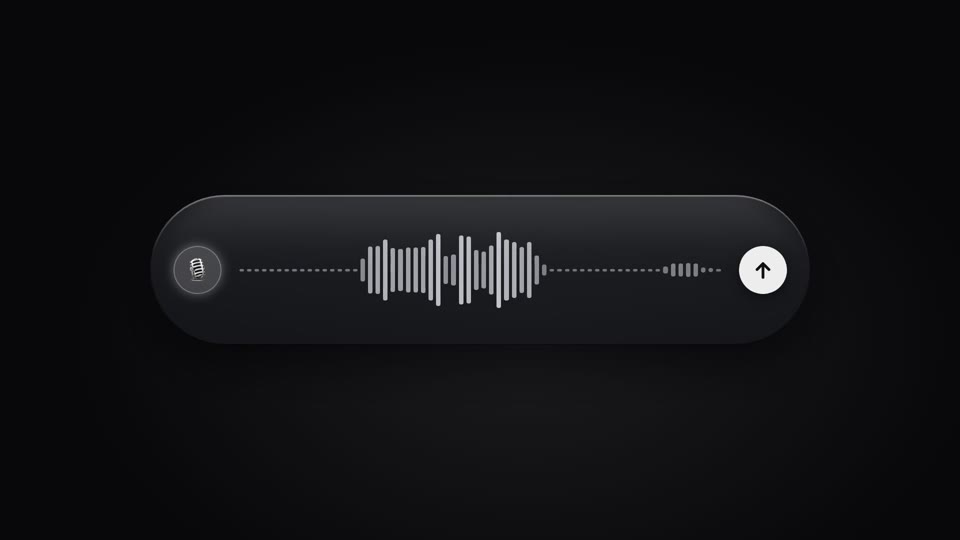
Live voice waveform
A live waveform in a recording pill — 64 thin bars rise and fall with "speech," spiking tall mid-speech and shrinking to a dotted line on pauses, scrolling right to left; a full speak-pause-speak-submit performance.
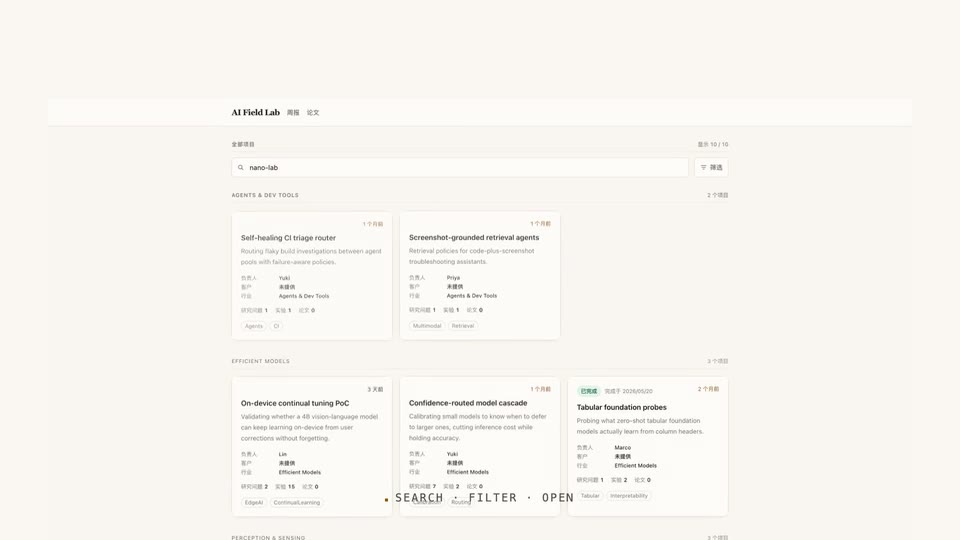
Type, filter, drill in
Typing a search on a real UI, the grid converges to a single card on its own, then a click drills through into the detail page.
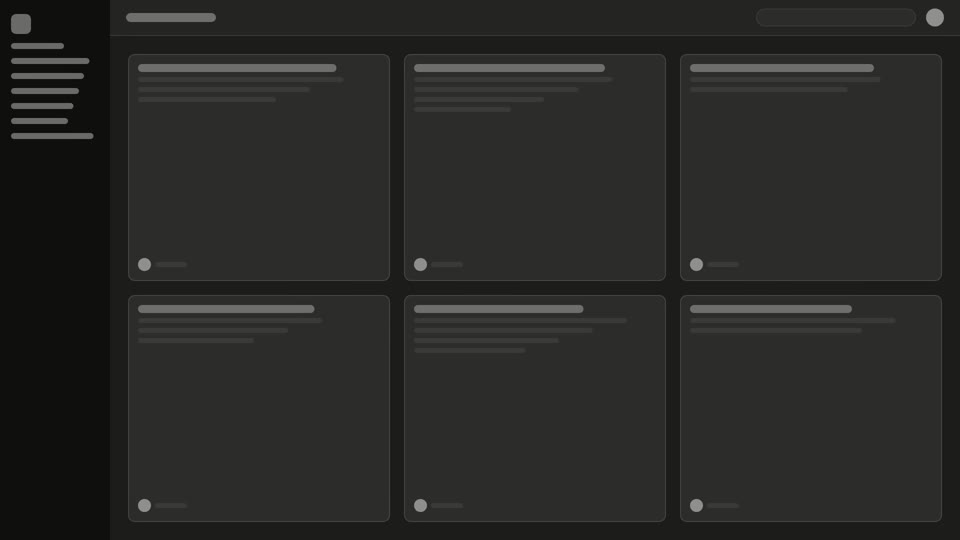
Theme switch: sweep and ripple
Two theme-switch moves — theme-sweep, a diagonal wipe (the skin changes wherever the boundary passes), and palette-ripple, a combo move (a ⌘K panel collapses to a point, a ripple spreads from it to re-skin).
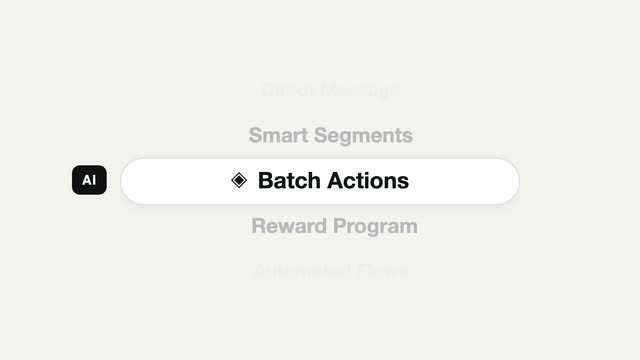
Picker carousel feature cycle
A mobile-style vertical picker — the focus pill stays still while content scrolls through it, snapping to a full stop each time.